User Guide
RACE (Residential Assistant’s Contact Entries) is a desktop application for managing resident information, optimized for use via a Command Line Interface (CLI) while still providing the benefits of a Graphical User Interface (GUI). It allows Residential Assistants to quickly store, update, and retrieve resident details in a secure, centralised system, replacing fragmented and inefficient workflows. Fast CLI commands enable efficient data entry and management, especially during high-intensity periods like onboarding.
RACE is the product name used throughout this guide. Where the term "address book" appears, it is used as a generic description of the app's function. The executable filename remains addressbook.jar.
Target Users: Residential Assistants (RAs)
Assumptions: Users have basic computer literacy and are comfortable with typing commands, navigating lists, and interpreting simple system feedback. They can quickly pick up terminal-style interactions and prefer efficient, keyboard-driven workflows for repetitive tasks. This guide assumes a Residential College (RC) context where one resident is tracked per room; duplicate room numbers are therefore treated as invalid.
Quick start
Ensure you have Java
17or above installed in your Computer.
Mac users: Ensure you have the precise JDK version prescribed here.Download the latest
.jarfile from here.Copy the file to the folder you want to use as the home folder for your address book data in RACE.
Open a command terminal,
cdinto the folder you put the jar file in, and use thejava -jar addressbook.jarcommand to run the application.
A GUI similar to the below should appear in a few seconds. Note how the app contains some sample data.
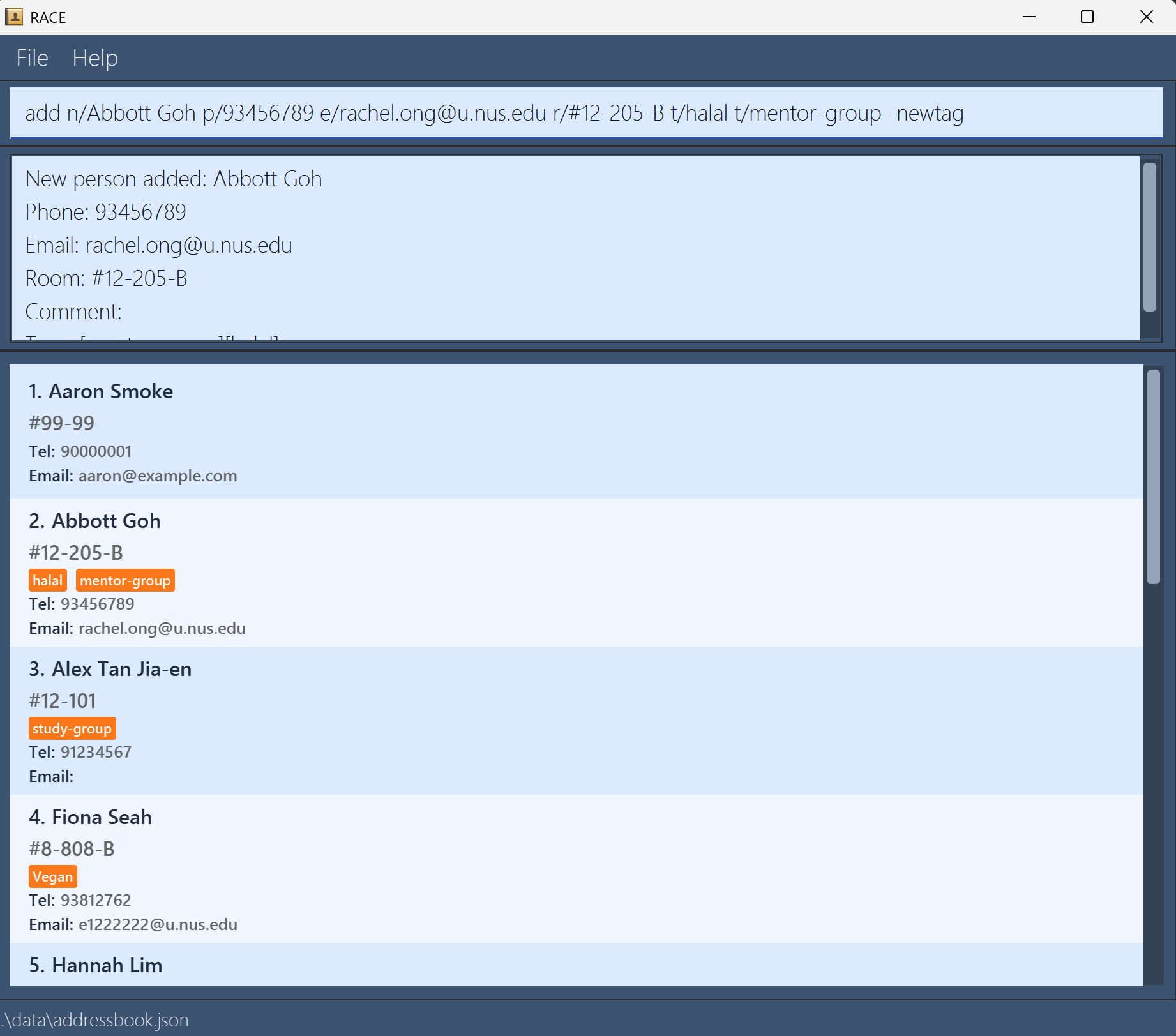
Type the command in the command box and press Enter to execute it. e.g. typing
helpand pressing Enter will open the help window.
Some example commands you can try:list: Lists all residents.add n/John Doe p/98765432 e/e1234567@u.nus.edu r/#01-01: Adds a resident namedJohn Doeto the address book.delete 3: Deletes the 3rd resident shown in the current list.clear: Deletes all residents.exit: Exits the app.
Refer to the Features below for details of each command.
Features
Notes about the command format:
Basic syntax:
Words in
UPPER_CASEare the parameters to be supplied by the user.
e.g. inadd n/NAME,NAMEis a parameter which can be used asadd n/John Doe.Items in square brackets are optional.
e.gn/NAME [t/TAG]can be used asn/John Doe t/halalor asn/John Doe.Items with
… after them can be used multiple times including zero times.
e.g.[t/TAG]…can be used ast/halal,t/halal t/allergiesetc.Parameters can be in any order.
e.g. if the command specifiesn/NAME p/PHONE_NUMBER,p/PHONE_NUMBER n/NAMEis also acceptable.
Dash-based options:
Dash-based inputs are options.
Some options take a value, while others are standalone flags.Options that take a value must be followed by one.
e.g.-sort PREFIXcan be used as-sort n/.Some options are standalone flags which do not take a value.
e.g.-newtagshould be entered by itself, not as-newtag yes.If a flag is specified multiple times, it will be treated as a single flag.
e.g.-newtag -newtagis treated the same as-newtag.
Multi-value and spacing:
For commands that accept multiple values in one parameter, use comma-separated input.
e.g.delete 1,3,5deletes residents at indices 1, 3, and 5.Leading and trailing spaces are ignored for command arguments.
e.g.delete 1, 3 ,5is accepted asdelete 1,3,5.If you are using a PDF version of this document, be careful when copying and pasting commands that span multiple lines as space characters surrounding line-breaks may be omitted when copied over to the application.
Field constraints:
For fields that should appear at most once (e.g.
n/,p/,e/,r/,c/), providing the same prefix more than once in a single command is rejected.Prefix-like tokens are reserved by the parser and should not be used as plain text inside field values.
e.g. avoid includingp/,c/,n/,e/,r/, ort/inside free-text input unless you intend to start a new field.When the app reports
Invalid command format!, the message often includes a second line showing the correct usage for that command. Read both lines together.
Viewing help : help
Shows a help window with a link to the application’s online user guide.
Format:
help
Expected Output:
After inputting help:
Opened help window.
Note:
- The help window includes a URL to the online user guide.
- You can also open help from the Help menu or press
F1.
Tips:
Use this command whenever you need a quick reminder of the documentation link.
If the help window is minimised, it may stay hidden when you run
helpagain — see Known issues.
Adding a resident: add
Adds a resident to the address book.
Format: add n/NAME [p/PHONE] [e/EMAIL] r/ROOM [t/TAG]… [-newtag]
Tip: A resident can have any number of tags (including 0)
Note:
- Built-in tags are
vegetarian,vegan,halal, andallergies. - All tags are case-sensitive. For example,
study-groupandStudy-Groupare treated as different tags. - Kebab-case is recommended for consistency, e.g.
study-group. - Spaces are not allowed in tags. Use hyphens to separate words instead (e.g.,
study-groupnotstudy group). - To create a new custom tag while adding a resident, include
-newtagin the same command. - If you include
-newtagfor a tag that already exists, RACE will still accept the command. No duplicate tag is created. - If you provide
-newtagwithout anyt/tag in the same command, the command may still succeed, but no tag is created. See FAQ: Rules and limitations for details. - Duplicate checks apply to
name,room,phone, andemail. - Room uniqueness is intentional for this app's model (one resident per room in this Residential College (RC) context).
phoneandemailare optional, but if provided, they must still be unique among residents.- If you previously ran
list -sort ..., adding a resident preserves that active sort order in the displayed list.
Examples:
add n/John Doe p/98765432 e/e1234567@u.nus.edu r/#14-203-Dadd n/Betsy Crowe t/vegetarian e/e4567890@u.nus.edu r/#10-10 p/1234567 t/allergiesadd n/Alex Tan Jia-en r/#12-101 p/91234567 t/study-group -newtag
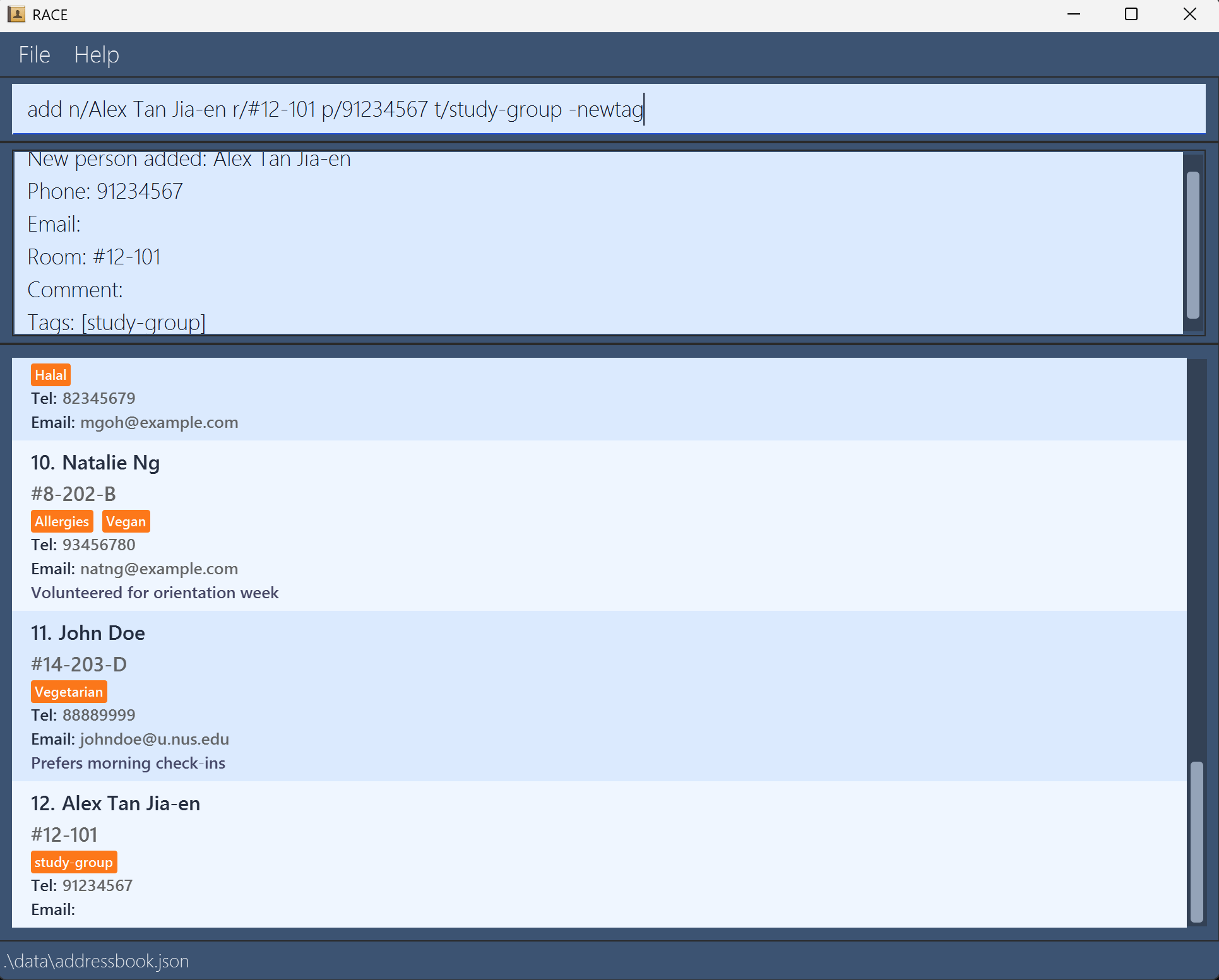
add n/Alex Tan Jia-en r/#12-101 p/91234567 t/study-group -newtag shows a successful add and the new resident entry in the list.
Caution:
- Text before the first prefix (e.g.
add stray n/Alice r/#1-01) triggersInvalid command format!. - Missing required fields:
- Missing
n/->Missing required parameter: n/NAME - Missing
r/->Missing required parameter: r/ROOM
- Missing
- Duplicate fields are rejected with targeted messages:
- Name ->
Name already exists in the address book. E.g. try using Alex Tan (Year 2) instead of Alex Tan. - Phone ->
Phone number already exists in the address book. - Email ->
Email already exists in the address book. - Room ->
Room number already exists in the address book.
- Name ->
-newtagmust not be followed by a value; e.g.-newtag oopsis rejected.
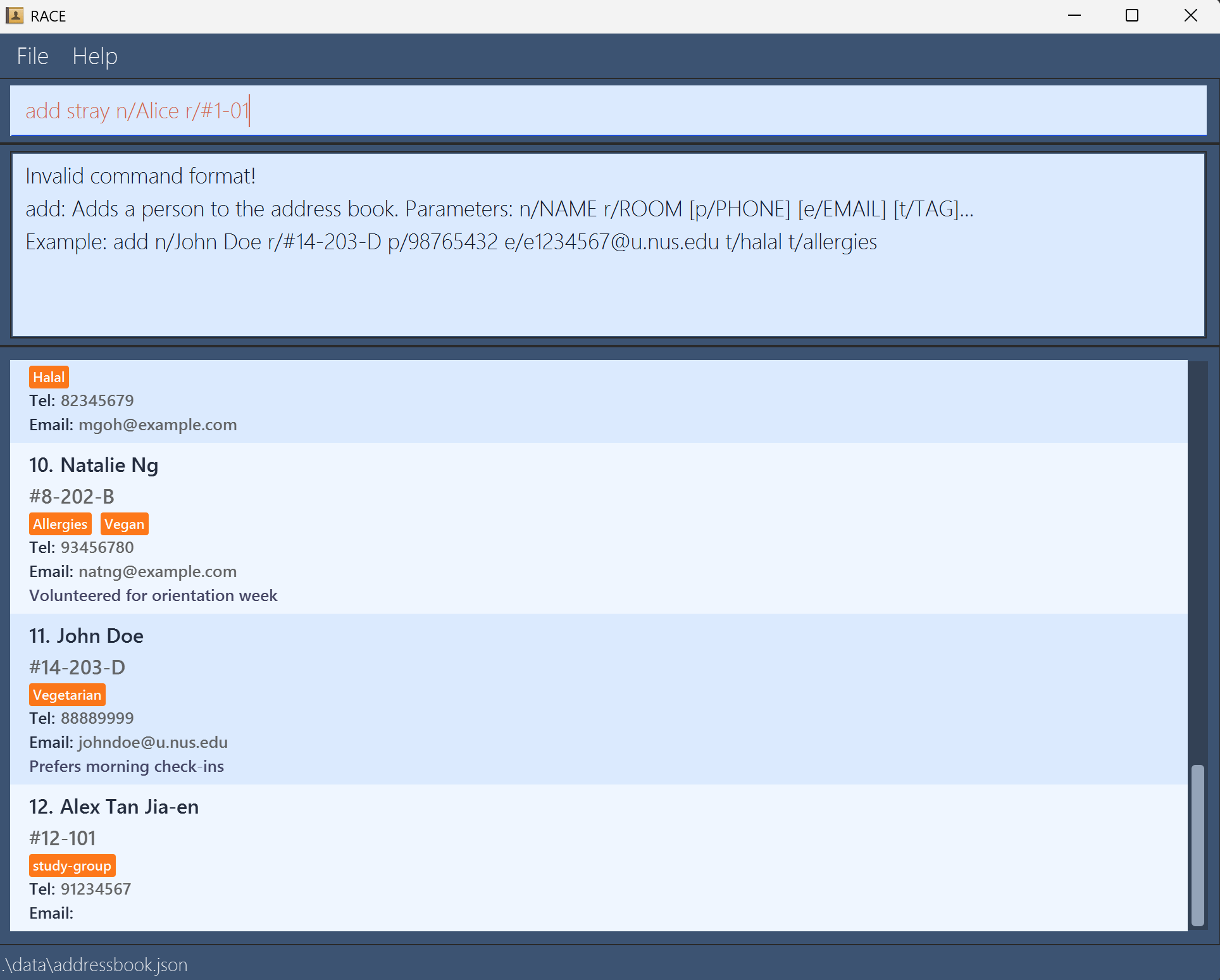
add stray n/Alice r/#1-01 shows Invalid command format! feedback.
Working with tags
Tags help you label residents with quick categories or notes.
Note:
- The four built-in tags are always available:
vegetarian,vegan,halal,allergies. - Any other tag is treated as a custom tag.
- Custom tags must already exist before you can reuse them.
- Spaces are not allowed in tags. Use hyphens to separate words (e.g.,
project-teamnotproject team). - If you want to introduce a brand-new custom tag, use
-newtagtogether withaddoredit. - If you use
-newtagfor an already existing tag, the command still succeeds normally. See FAQ: Rules and limitations for-newtagbehavior details.
Examples:
add n/Sam Lee r/#08-110 t/halaluses a built-in tag.add n/Sam Lee r/#08-110 t/study-group -newtagcreates and uses a new custom tag.edit 2 t/study-groupreuses an existing custom tag.edit 2 t/Study-Group -newtagcreates a different tag fromstudy-groupbecause tags are case-sensitive.
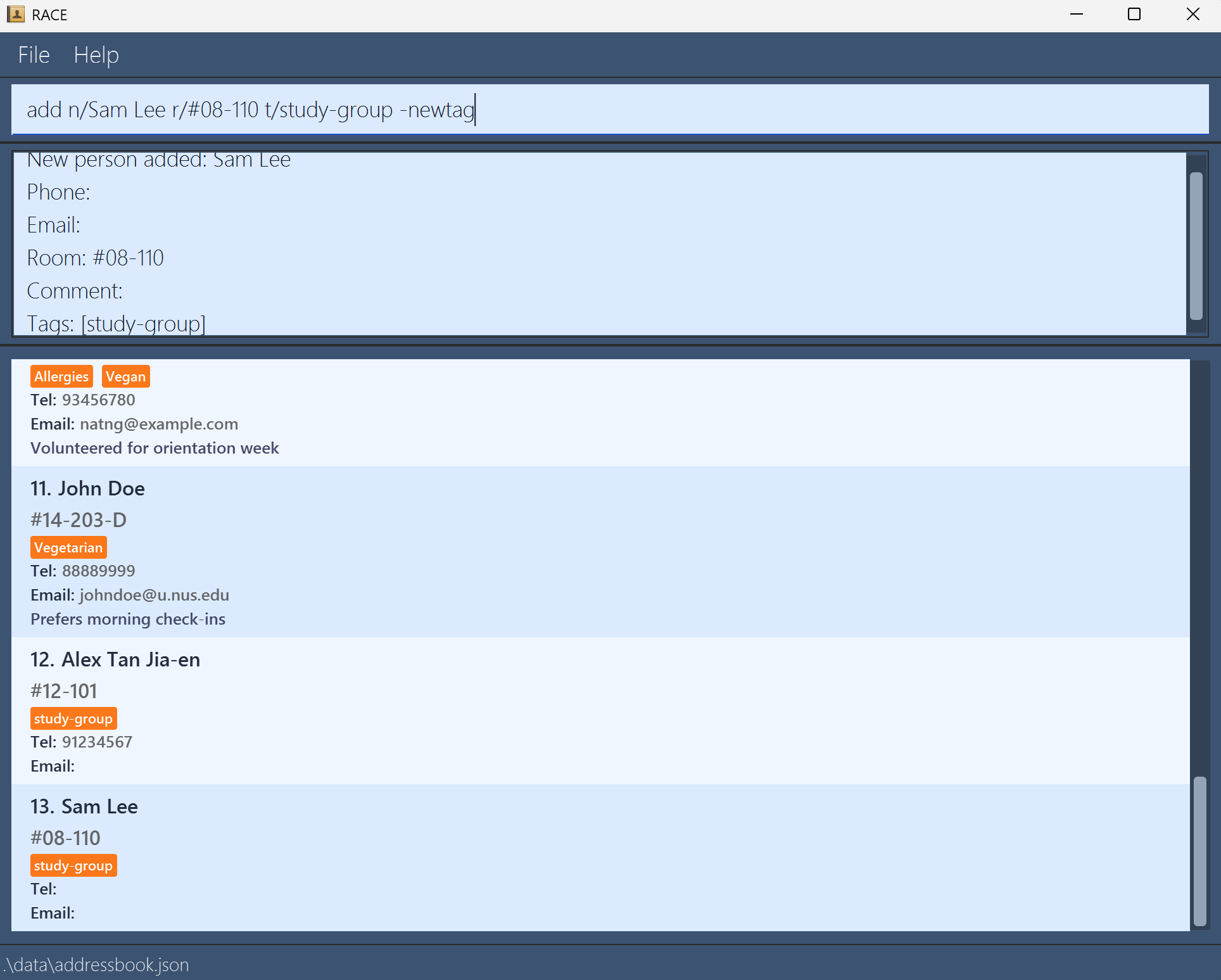
add n/Sam Lee r/#08-110 t/study-group -newtag demonstrates custom tag usage in the resident list.
Listing all residents : list
Shows all residents in the address book. You can optionally sort the displayed list by name or room.
Format: list or list -sort PREFIX
Expected Output:
- When sorting is NOT used:
Listed all residents - When sorting IS used:
Listed all residents sorted by FIELD(whereFIELDisnameorroom, depending on the prefix you used)
Note:
- Supported sort prefixes:
n/(name)r/(room)
- Only one sort field is supported per command. Do not combine prefixes in a single sort (e.g.,
list -sort n/ r/is invalid). - If you omit
-sort, residents are shown in the order stored in the app (typically the order they were added).
Caution:
- Invalid command format →
Invalid command format! - Invalid sort prefix (e.g.,
list -sort x/) →Invalid sort field! Supported field prefixes: n/, r/ - Multiple sort fields are not supported (e.g.,
list -sort n/ r/) →Invalid command format!
Tips:
- Use
list -sort PREFIXto review residents in a predictable order. - After
find, any active sort order is cleared until you runlist -sort ...again.
Examples: Input → Expected Output
list→Listed all residentslist -sort r/→Listed all residents sorted by roomlist -sort n/→Listed all residents sorted by name
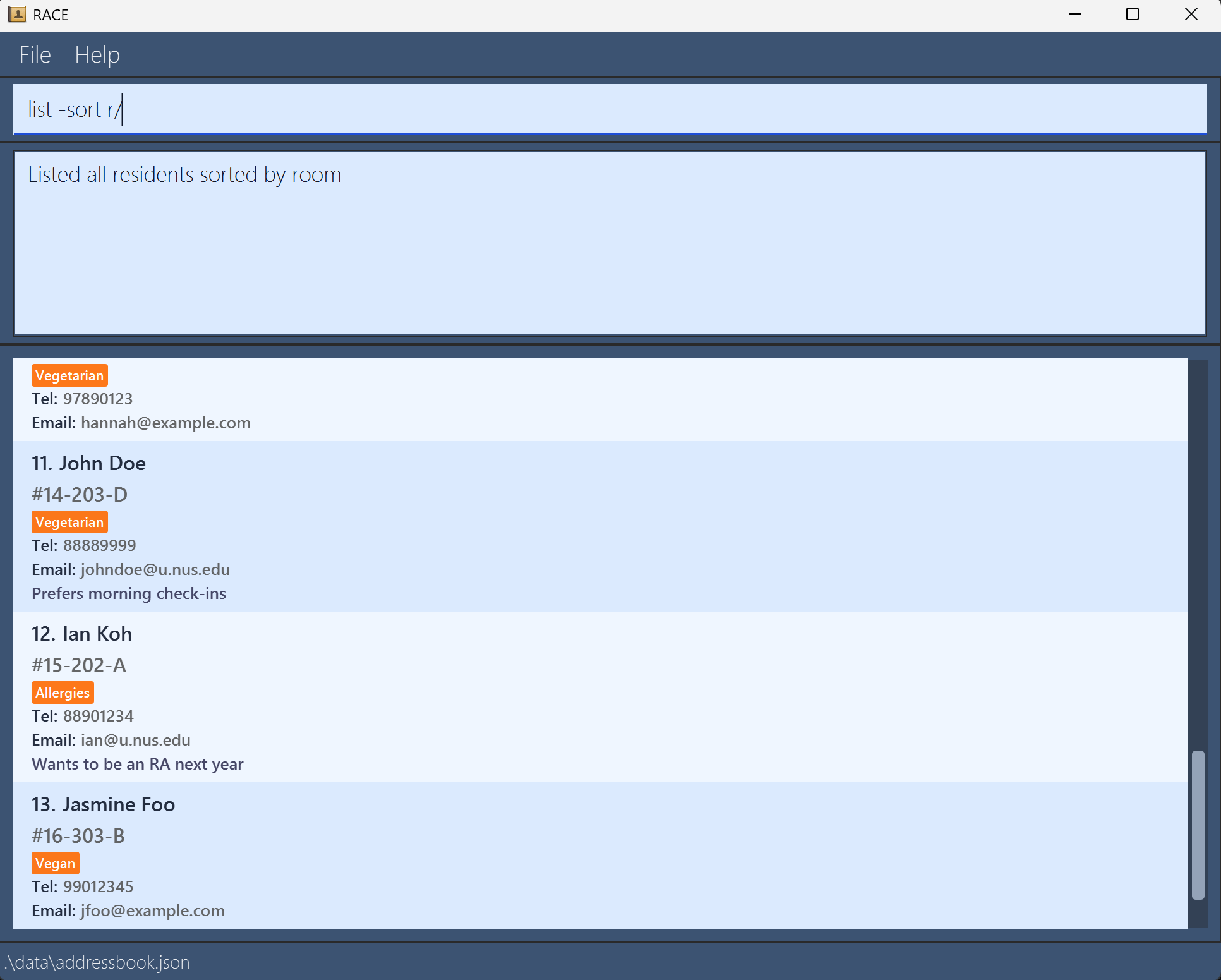
list -sort r/ shows the resident list sorted by room with the corresponding result message.
Editing a resident : edit
Edits an existing resident in the address book.
Format: edit INDEX [n/NAME] [p/PHONE] [e/EMAIL] [r/ROOM] [t/TAG]… [-newtag]
- Edits the resident at the specified
INDEX. The index refers to the index number shown in the displayed list. The index must be a positive integer 1, 2, 3, … - At least one of the optional fields must be provided.
- Existing values will be updated to the input values.
- When editing tags, the existing tags of the resident will be removed i.e. adding of tags is not cumulative.
- You can remove all of the resident’s tags by typing
t/without specifying any tags after it. - If the edited tags include a brand-new custom tag, include
-newtagin the same command.
Examples:
edit 1 p/91234567 e/e1222222@u.nus.eduEdits the phone number and email address of the 1st resident to be91234567ande1222222@u.nus.edurespectively.edit 2 n/Betsy Crower t/Edits the name of the 2nd resident to beBetsy Crowerand clears all existing tags.edit 3 t/project-team -newtagReplaces the 3rd resident's tags withproject-teamand creates that custom tag if needed.
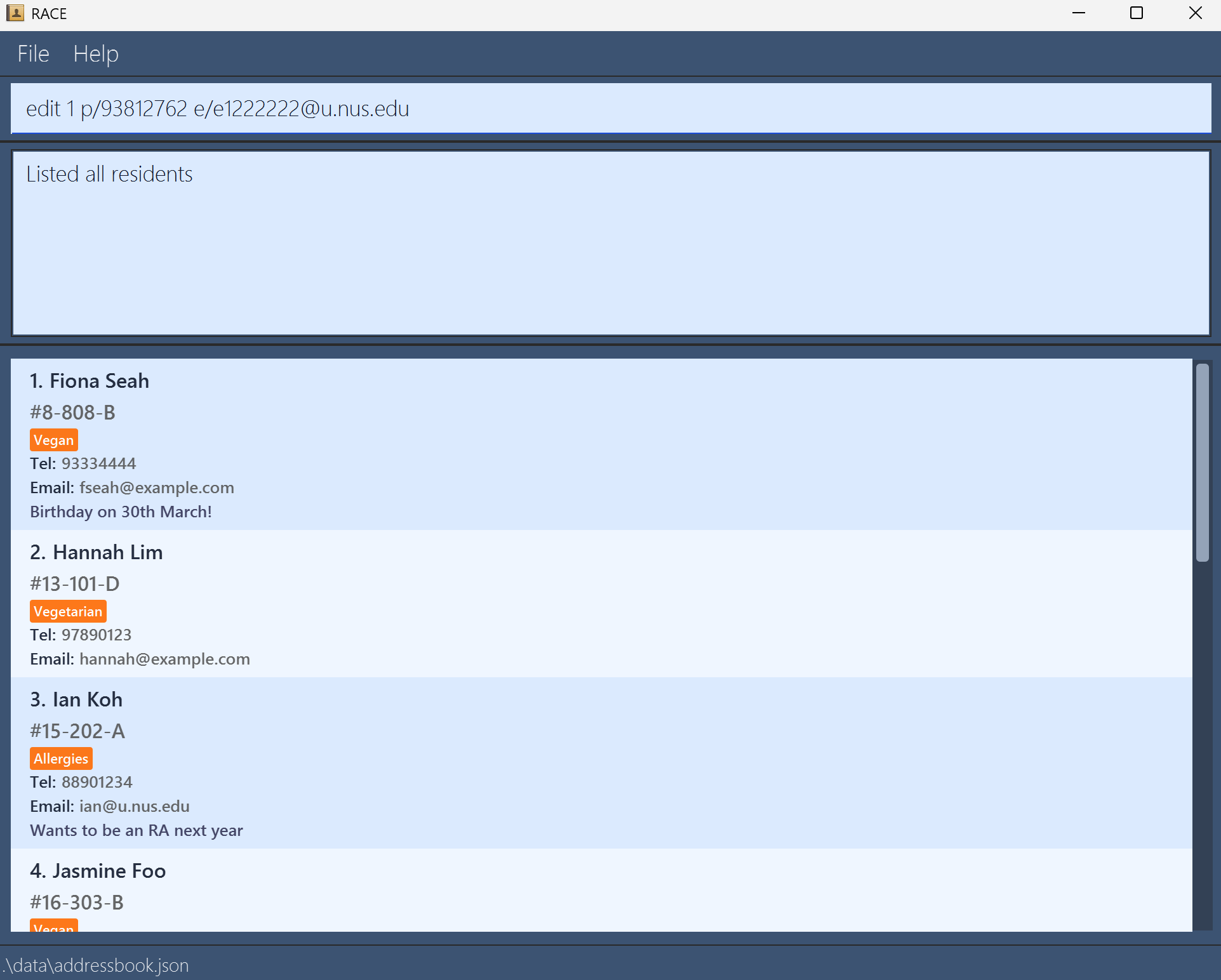 Before
 edit 1 p/91234567 e/e1222222@u.nus.edu: resident details prior to edit.
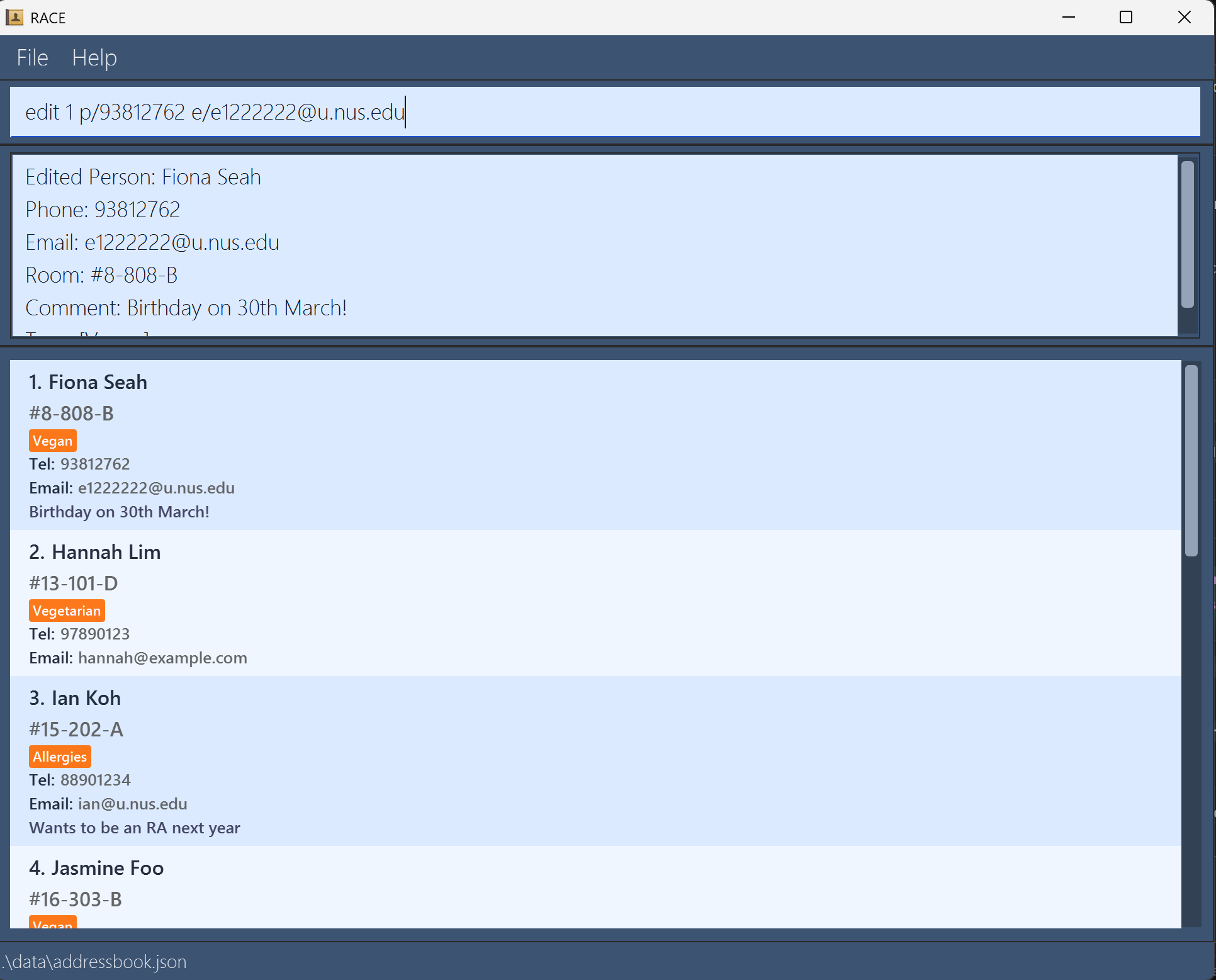 After
After edit 1 p/91234567 e/e1222222@u.nus.edu: success message and updated resident details.
Commenting on a resident: comment
Adds, edits, or deletes a comment for a specific resident.
Format: comment INDEX c/[COMMENT]
Expected output (the full line includes the resident’s details after the name):
- New comment (resident had no comment before):
Added comment to Person: NAME; ... - Replacing an existing comment:
Updated comment for Person: NAME; ... - Deleting a comment (
c/with no text):Removed comment from Person: NAME; ...
Note:
- The
INDEXrefers to the unique numbered position shown in the current list (vialistorfind). TheINDEXmust be a positive integer (1, 2, 3, …). - A new comment will overwrite any existing comment.
- To delete a comment, use
c/with no text. - If the comment only contains whitespace, it is treated as empty and the comment is removed.
Examples: Input → Expected Output
comment 1 c/Prefers WhatsApp messages before visits
→ Adds a new comment to the 1st residentcomment 2 c/Lost room key on 15 Mar
→ Replaces existing commentcomment 3 c/
→ Deletes the existing comment
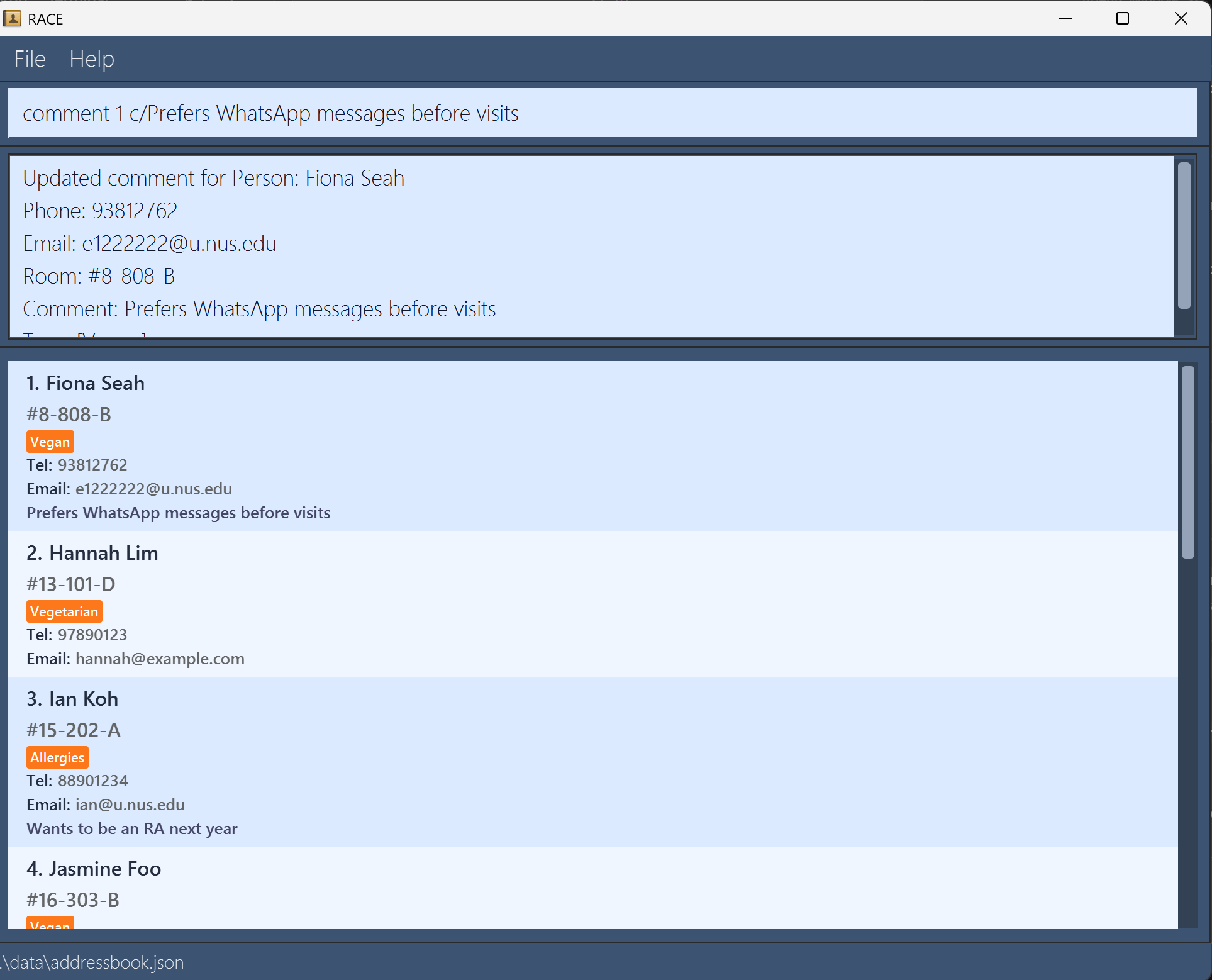
comment 1 c/Prefers WhatsApp messages before visits adds a comment to the resident card.
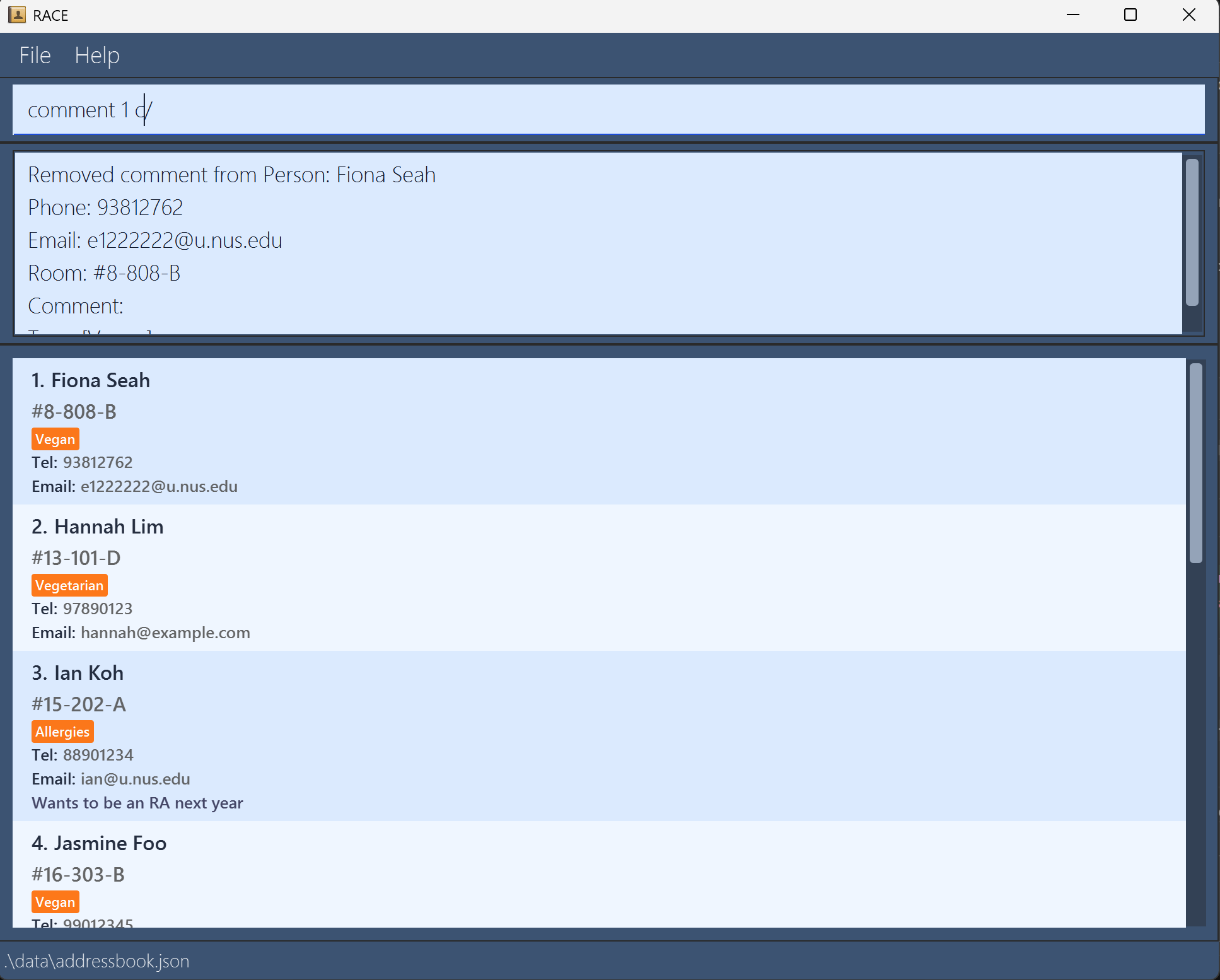
comment 1 c/ removes the comment from the resident card.
Caution:
- Invalid index →
The person index provided is invalid - Missing parameters →
Invalid command format!
Tips:
- Use comments to log important interactions (e.g., maintenance issues, noise complaints, welfare check-ins).
- Use
comment INDEX c/to quickly clear outdated notes.
Finding residents by keyword (name, room, or tag): find
Finds residents whose name, room, or tags contain any of the given keywords.
Format:
find KEYWORD [MORE_KEYWORDS]...
Expected Output:
X persons listed!
Note:
- Search is case-insensitive.
- Partial matching is supported.
- e.g.,
HanmatchesHans - e.g.,
#14-2matches#14-203-D - e.g.,
allergmatches tagallergies
- e.g.,
findchecks resident name, room, and tags only.finddoes not search thecommentfield.- If multiple keywords are provided, OR logic is used (a resident is returned if any keyword matches).
Examples: Input → Expected Output
find alex
→ Shows residents whose names containalexfind #14-2
→ Shows residents in rooms containing#14-2find allerg
→ Shows residents with tags containingallerg(e.g.,allergies)find alex #14-2 halal
→ Shows residents matching any of these keywords in name, room, or tags
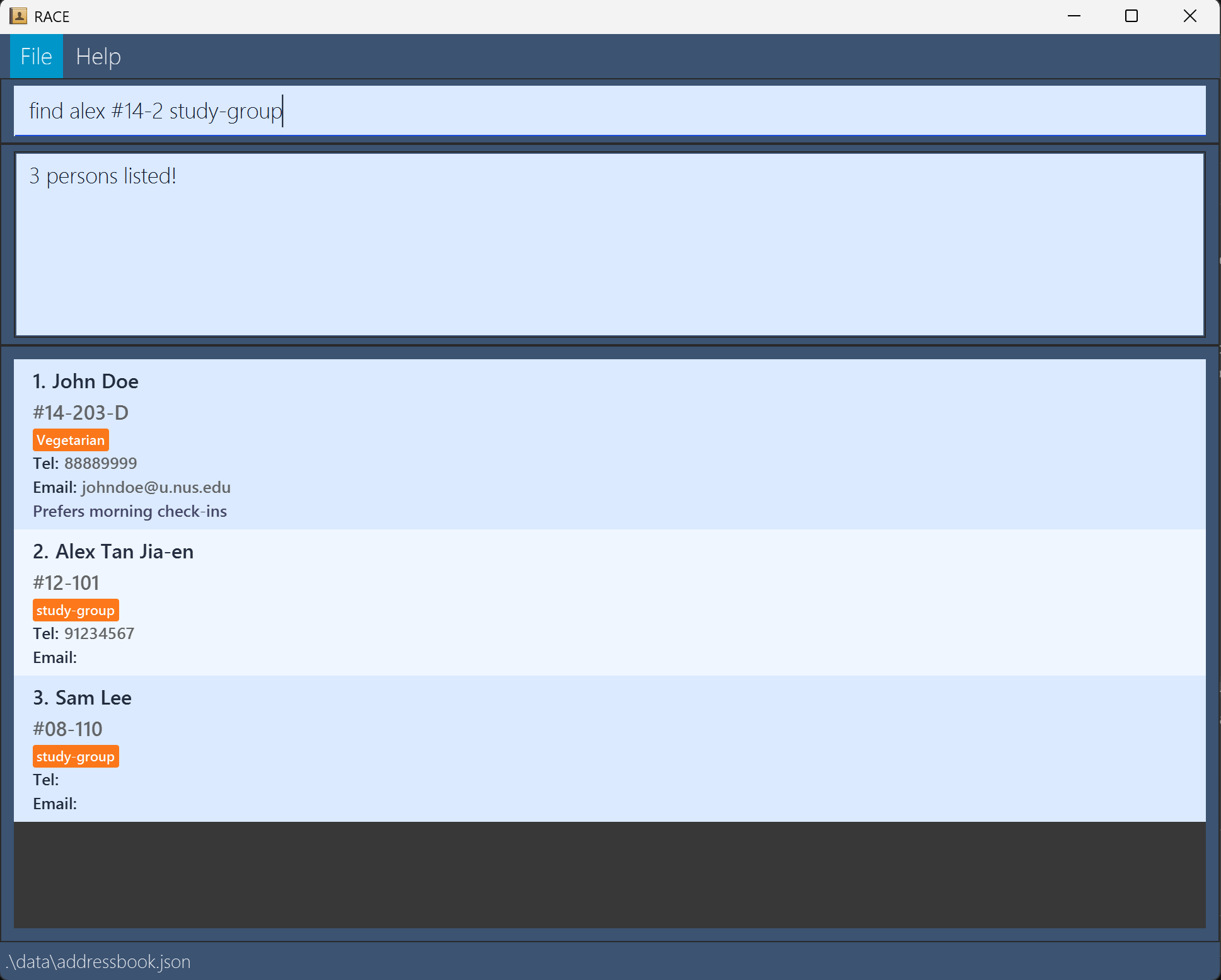
find alex #14-2 study-group shows filtered results that match any provided keyword.
Caution:
- No input provided →
Invalid command format!
Tips:
- Use multiple keywords to quickly find groups (e.g.,
find Alex Bob David Hannah). - Combine with other commands for efficiency:
find Alex→delete 1find Alex→edit 1 r/#14-205
- To sort the list again after filtering, run
list -sort ....
Deleting a resident: delete
Deletes one or more residents from the address book.
Format: delete INDEX[,INDEX]...
Expected Output:
- One index:
Deleted Person: NAME; Phone: PHONE; Email: EMAIL; ... - Several indices:
Deleted Persons:followed by one block per deleted resident (same detail format as above)
Note:
- The
INDEXrefers to the position in the current list (listorfind). - The
INDEXmust be a positive integer (1, 2, 3, …). - Deletion is permanent and cannot be undone.
Examples: Input → Expected Output
delete 1
→ Deletes the 1st residentlist→delete 3
→ Deletes the 3rd resident in the listfind Alex→delete 1
→ Deletes the first matching resultdelete 1,3
→ Deletes the 1st and 3rd residents in the current list (see command format notes)
Caution:
- Invalid index →
The person index provided is invalid - Missing index →
Invalid command format! - Trailing/leading/consecutive commas are invalid (e.g.
delete 1,,delete ,1,delete 1,,2) →Invalid command format!
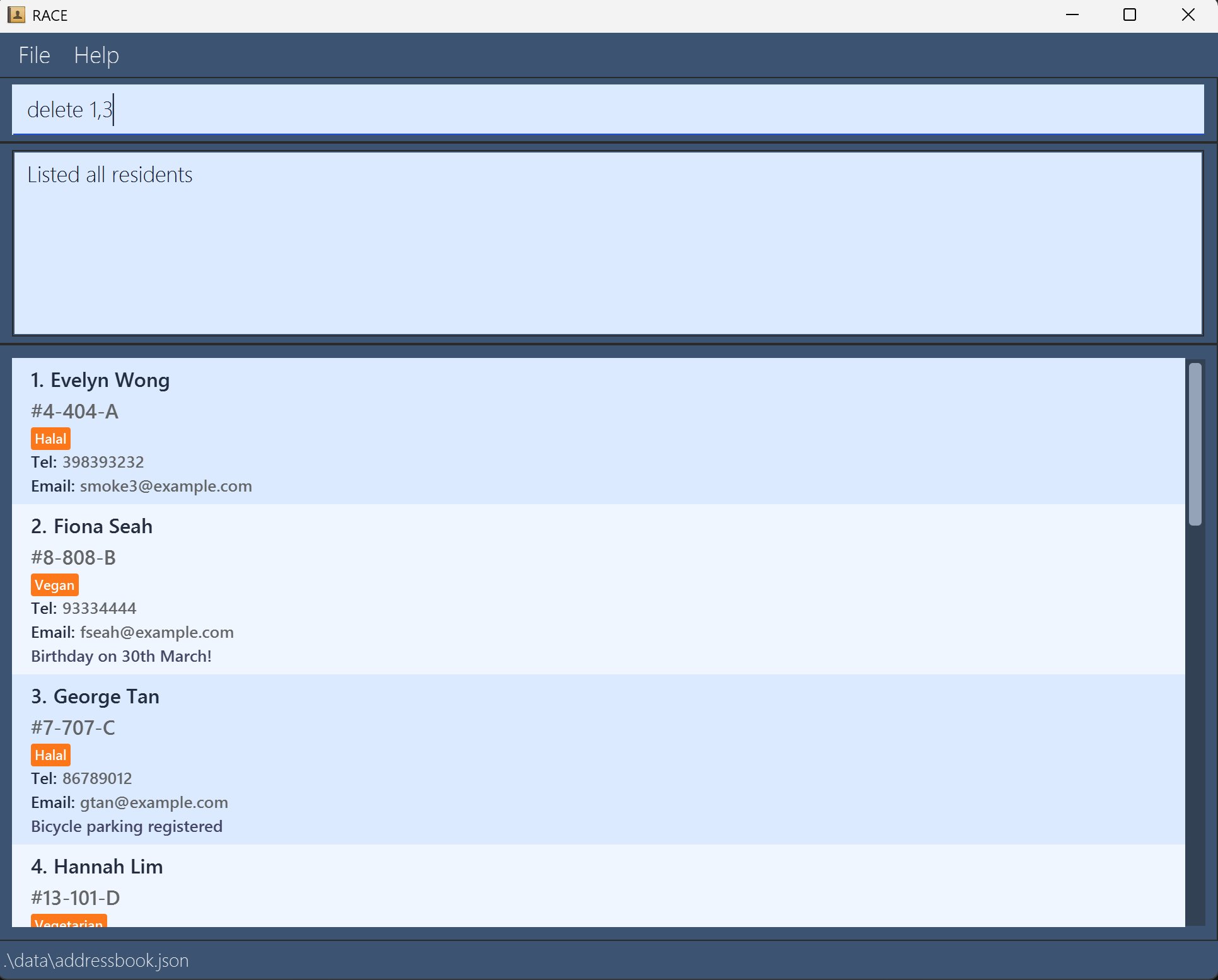 Before
 delete 1,3: resident list state prior to deletion.
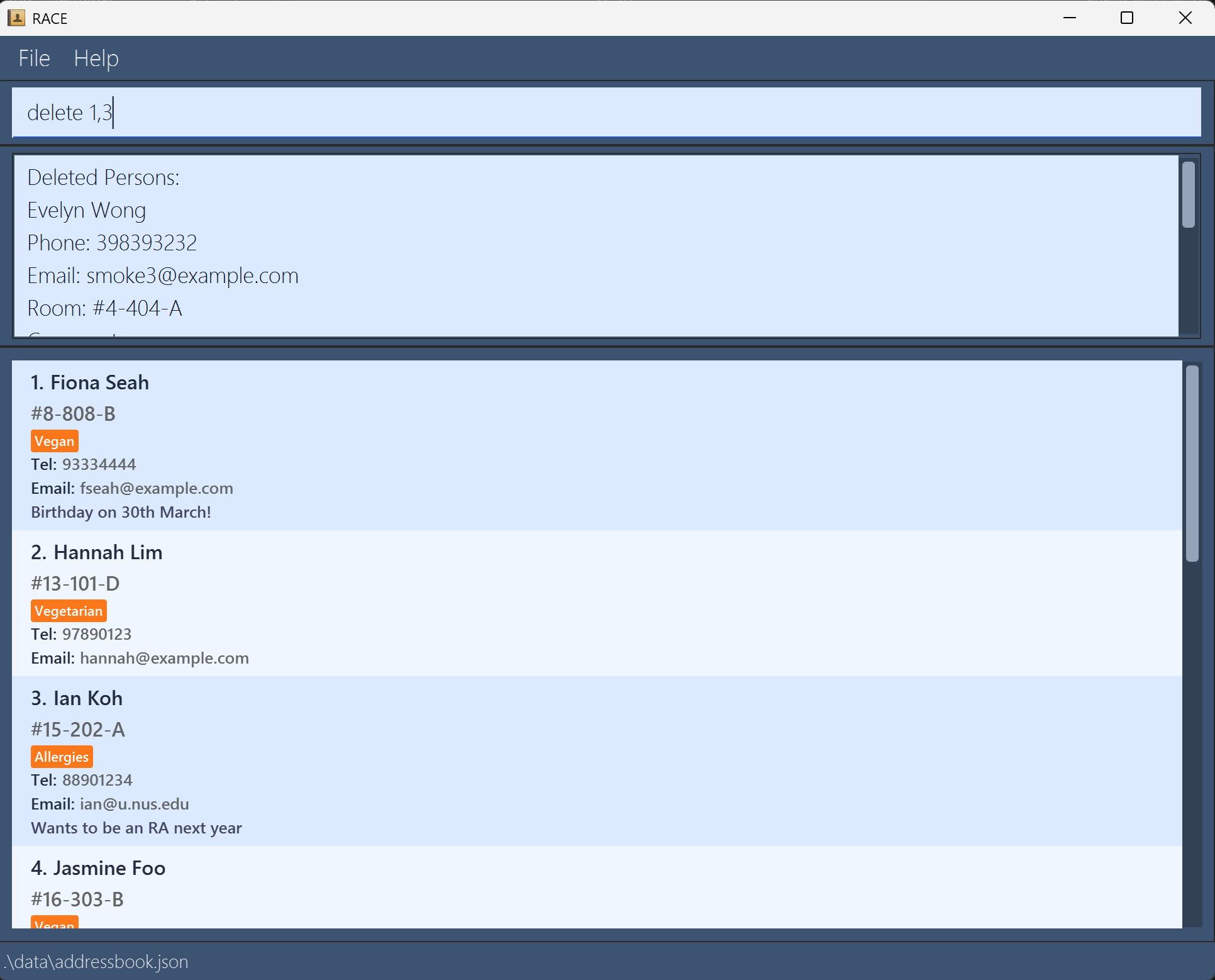 After
After delete 1,3: Deleted Persons: confirmation and updated resident list.
Tips:
- Always confirm the correct index using
listorfind. - Back up
data/addressbook.jsonbefore bulk deletions. See FAQ: Saving and data for where the file is located and how to copy it. - After
find, indices refer to filtered results (not the full list).
Clearing all residents: clear
Clears all residents from the address book.
Format: clear
Expected Output:
Address book has been cleared!
Note:
- This action removes all data permanently and cannot be undone.
Examples: Input → Expected Output
clear
→ Removes all residentsclear abc
→ Still removes all residents (extra input ignored)
Caution:
- None (unless command is misspelled)
Tips:
- Use
clearat the start of a new semester to reset the system. - Back up
data/addressbook.jsonbefore using this command. See FAQ: Saving and data for where the file is located and how to copy it. - Avoid accidental execution.
Exiting the program: exit
Closes the application.
Format: exit
Expected Output:
Exiting Address Book as requested ...
(Application window closes)
Note:
- All data is automatically saved before exiting.
Examples: Input → Expected Output
exit
→ Closes the applicationexit 123
→ Still exits (extra input ignored)
Caution:
- None (unless command is misspelled)
Tips:
- Use
exitfor quick keyboard-based closing. - You can also close the window manually — data is auto-saved.
- Ensure all tasks are completed before exiting.
Saving the data
RACE data are saved to disk automatically after every successful command. There is no need to save manually.
Editing the data file
RACE data are saved automatically as a JSON file [JAR file location]/data/addressbook.json. Advanced users are welcome to update data directly by editing that data file.
Caution:
If your changes to the data file makes its format invalid, RACE will discard all data and start with an empty data file at the next run. Hence, it is recommended to take a backup of the file before editing it.
Furthermore, certain edits can cause RACE to behave in unexpected ways (e.g., if a value entered is outside the acceptable range). Therefore, edit the data file only if you are confident that you can update it correctly.
If you edit tags manually, keep the customTags list reasonably aligned with the custom tags used by residents. On load, RACE ensures that all tags used by residents are present in customTags, but extra unused entries in customTags may still remain.
Archiving data files [coming in v2.0]
Details coming soon ...
FAQ
Resident details
Q: What information can I store for each resident?
A: In RACE, each resident has a name and room, plus optional phone number, email address, tags, and a comment.
Q: Is it required to enter the phone number and email for a resident?
A: No. You can omit these when using the add command.
Q: Can I add a comment while creating a resident?
A: No. Comments cannot be added as part of the add command. They must be added later with the comment command.
Rules and limitations
Q: Can I add two residents with the same name?
A: No. Name is part of duplicate checking, so adding another resident with the same name is rejected. If two residents have the same legal name, use a differentiator in the stored name, e.g., Alex Tan (Block 14) and Alex Tan (Block 9).
Q: What fields are checked for duplicates when adding a resident?
A: RACE rejects add if an existing resident already has the same name, room, phone (when provided), or email (when provided).
Q: Can I delete more than one resident at once?
A: Yes. Use comma-separated indices, e.g. delete 1,3,5 (see the delete section).
Q: How do I create a new custom tag?
A: Use -newtag together with add or edit. For example, add n/Sam Lee r/#08-110 t/study-group -newtag creates study-group if it does not already exist.
Q: Are tags case-sensitive?
A: Yes. study-group and Study-Group are treated as different tags. For consistency, we recommend entering tags in kebab-case.
Q: Can tags contain spaces?
A: No. Tags cannot contain spaces. Use hyphens to separate words instead (e.g., study-group instead of study group).
Q: What happens if I use -newtag for a tag that already exists?
A: Nothing extra happens. The command still works normally, and RACE simply reuses the existing tag.
Q: What if I use -newtag without any t/ tag?
A: The command may still succeed if the rest of the input is valid, but no tag is created. Use -newtag together with at least one t/TAG value when creating new tags.
Saving and data
Q: Does the app save automatically?
A: Yes. Data is saved automatically after every successful command.
Q: Where is my data stored?
A: Your data is stored in data/addressbook.json, in the same folder as the .jar file you use to open the app.
Q: How do I move my data to another computer, or pass it to another RA taking over?
A: Close the app first. Then find data/addressbook.json in the same folder as the .jar file you use to open the app. Copy that file into the data folder within the same folder as the .jar file in the new setup. If the new setup already has its own addressbook.json, replace it with your copied file. When you open the app again, your resident list should appear there.
Q: What happens the first time I open the app?
A: If no data file exists yet, the app starts with sample residents. These are written to data/addressbook.json when you make your first successful change. If the file exists but cannot be loaded properly, the app starts with an empty list, your next successful change saves a fresh data file, and the message box shows the startup loading result.
Q: What will I see if addressbook.json cannot be loaded on startup?
A: RACE shows the loading result in the message box. For example, if duplicate residents are found, the message box shows the load error and that the app started with an empty address book instead. If the file exists but is empty, RACE treats it like a missing data file and loads sample residents instead. For malformed JSON syntax, the original parser error may be shown and can be quite long.
Help
Q: How do I get help?
A: Use the help command or press F1 to open the help window.
Known issues
- Window position and size may be restored poorly after display changes. If you move the app to another screen, change to a smaller screen, or use a lower resolution, the app may reopen partially or fully off-screen. The remedy is to delete the
preferences.jsonfile created by the application before running the application again. - If you minimize the Help Window and then run the
helpcommand again (or use theHelpmenu, or the keyboard shortcutF1), the original Help Window will remain minimized, and no new Help Window will appear. The remedy is to manually restore the minimized Help Window. - Closing the app with the window close button behaves differently from using
exit. The latest window size and position may not be saved, and if the Help Window is still open, the application may continue running until that window is also closed. - Sample data on first launch is not written to disk immediately. If no data file exists yet, the app starts with sample residents in memory. If you close the app immediately without running a successful command,
data/addressbook.jsonmay not be created yet. - Unsupported prefixes may sometimes lead to misleading error messages. For example, using
c/insideaddis not supported, but the app may treat it as part of the previous field and report a room or tag format error instead of a clearer usage error.
Command summary
| Action | Format, Examples |
|---|---|
| Add | add n/NAME [p/PHONE] [e/EMAIL] r/ROOM [t/TAG]… [-newtag] e.g., add n/James Ho p/22224444 e/e1234567@u.nus.edu r/#14-203-D t/study-group -newtag |
| Clear | clear |
| Delete | delete INDEX[,INDEX]...e.g., delete 3, delete 1,3,5 |
| Edit | edit INDEX [n/NAME] [p/PHONE] [e/EMAIL] [r/ROOM] [t/TAG]… [-newtag]e.g., edit 2 n/James Lee t/project-team -newtag |
| Find | find KEYWORD [MORE_KEYWORDS] or find ROOMe.g., find James Jake, find #14-203-D |
| List | list [-sort PREFIX] e.g., list -sort r/ |
| Help | help |
| Comment | comment INDEX c/[COMMENT]e.g., comment 1 c/Prefers WhatsApp messages before visits, comment 3 c/ |